
What you will decide
By the end, you will know how much CPU, RAM, storage, and bandwidth your offshore VPS needs — so you don’t overpay, and your site doesn’t slow down.
Think of it like choosing a vehicle for a job. A scooter is perfect for one rider, but useless for moving furniture. A truck moves furniture, but it’s a waste for the daily commute. The trick is to match the vehicle to the load — and that is exactly how you pick VPS specs.
Before you start
The goal: pick a VPS plan that matches what your website actually does today, with a little headroom for growth.
Measure before you guess. If you already run a server, the best clue is its current usage. A few minutes of looking at real numbers beats guessing every time. If this is your first server, estimate from the closest example you have — a similar blog, shop, or app.
- Know roughly how many visitors you get per day or month.
- Know what your site does: a simple blog, a busy WordPress shop, or a heavier app.
- List your files, database, and how many backups you want to keep.
- Keep your current server’s SSH login ready if you have one, so you can measure it.
- Write the numbers down as you go — you will compare them to plan options.
How each spec maps to your site
Each spec answers a different question. Here is the simple rule:
- CPU (cores) → how much work the server can do at once — like engine power.
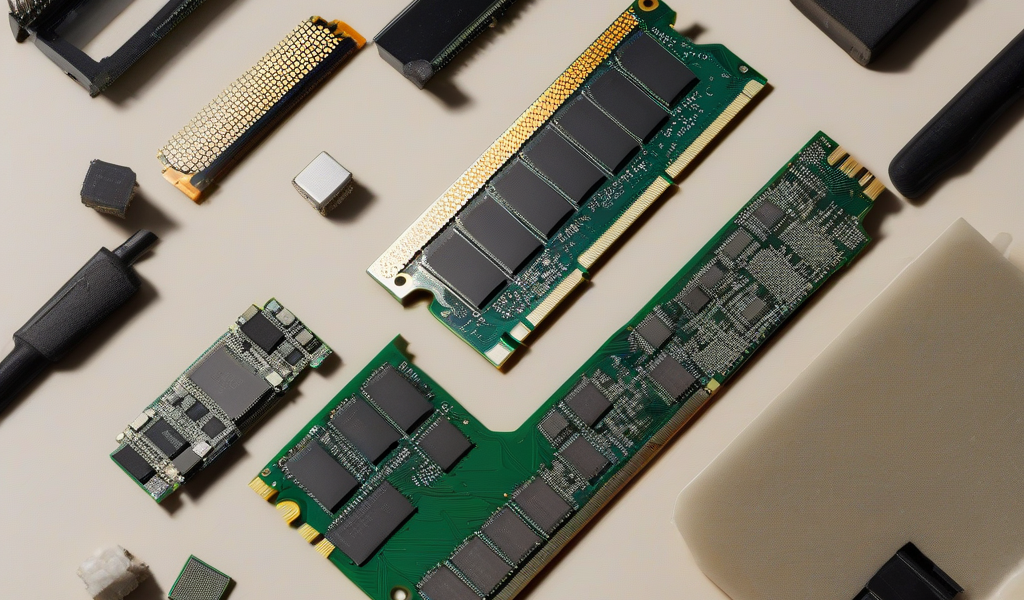
- RAM (memory) → how much it can hold open at once — like passenger and cargo space.
- Storage → where your files and database live — and how fast they load.
- Bandwidth → how much data you can carry to visitors each month — like fuel for the trips.
The steps
Step 1: Pick your CPU (cores)
CPU cores decide how many visitors and how much PHP work your server can handle at the same time. A small personal blog or a brochure site is light — 1 to 2 cores is plenty. A busy WordPress site, a shop, or an app that does real processing wants 4 or more cores so requests don’t wait in line.
Check: if your current site already slows down when several people visit at once, that is a sign you need more cores, not less.
Step 2: Pick your RAM (memory)
RAM is the room your server has to run your site plus its database and caching at the same time. Too little, and the server starts killing processes to survive. A small site is fine on 2GB. A busy WordPress site usually wants 4 to 8GB so caching and the database have breathing room. Heavier apps or many sites on one server want more.
Check: if your current server’s used memory is always near the top, or you see “out of memory” messages, size up.
Step 3: Pick your storage
Here the type matters more than the size. Always prefer NVMe or SSD over old spinning disks — it makes your whole site feel faster, especially the database. For size, add up your files, your database, and a few backups, then leave headroom. A small site is comfortable on 20–40GB; a media-heavy site or shop needs more.
Check: never fill a disk past about 80%. A full disk breaks backups and can take the site down.
Step 4: Pick your bandwidth
Bandwidth is the data your site sends to visitors each month. Pages with lots of images and video use far more than plain text. Look at whether a plan is metered (a fixed monthly amount) or unmetered, and read what happens if you go over — some hosts charge extra, others just slow you down.
Check: estimate average page size × monthly page views, then pick a plan with comfortable margin above that.
Extra commands you may need
Run these only on your own server. If your server uses a managed panel, check with support before changing system-level settings.
If you already have a server, these read its real usage so you can size the next one with confidence.
Count the CPU cores
nprocThis prints how many CPU cores the server has right now.
See total and used RAM
free -hThe -h shows it in easy units (like GB). Look at the used column — if it’s always close to total, you need more memory.
See disk space used and free
df -hLook at the line for /. The Use% column tells you how full the disk is.
Watch CPU and RAM live
htopThis opens a live view of CPU and memory. Load your site in another window and watch what happens — if the bars max out under normal traffic, you have your answer. Press q to quit. (Install it first with apt install htop -y if it’s missing.)
Keep short notes as you size
While you measure, jot down each number: cores, used and total RAM, disk used and free, and your rough monthly traffic. For example: “2 cores, 1.8GB used of 2GB, disk 75% full, ~30k visits/month.” It sounds small, but those four lines tell you exactly which plan to pick — and they make any chat with support much faster.
If you run the commands above, paste the output into your notes too. Then you can compare it directly against the specs on each plan instead of guessing.
If you pick wrong, how to adjust
Always leave yourself a way to change course. On a good VPS you can usually upgrade the plan later without moving servers — so it’s safer to start a little small and grow than to overpay from day one. If a spec turns out short, size up that one part (more cores, more RAM, or a bigger NVMe) rather than rebuilding everything at once.

How to confirm your choice
- Count your real cores with
nprocand compare to Step 1. - Check used vs total memory with
free -h— is there headroom? - Check disk use with
df -h— stay under about 80% full. - Watch
htopwhile your site is being used — nothing should max out. - Estimate monthly traffic against the plan’s bandwidth, with margin.
- Confirm the storage is NVMe or SSD, not a slow spinning disk.
Quick decision table
| Symptom | Likely shortage | Fix |
|---|---|---|
| Site slows down under traffic | CPU | Add more cores |
| Frequent out-of-memory or killed processes | RAM | Add more memory |
| Disk full or can’t make a backup | Storage | Move to a bigger NVMe |
Final checklist
- CPU matched to your traffic and workload.
- RAM leaves room for caching and the database.
- Storage is NVMe/SSD with headroom for backups.
- Bandwidth covers your monthly traffic, with margin.
- You can upgrade later without switching hosts.
OffshoreKaka offers privacy-friendly VPS plans with fast NVMe storage, so you can start at the right size and upgrade as you grow.
FAQ
Is it better to start big or start small?
Start at the size that fits your site today, with a little headroom. A good VPS lets you upgrade later, so there is no need to overpay for power you won’t use for months.
Will a bigger VPS improve my Google ranking?
Not on its own. The right specs keep your site fast and online, which helps — but your content and backlinks still decide where you rank. Don’t buy a huge plan expecting it to lift SEO by itself.
What if I’m not sure which spec I’m short on?
Measure it. Run nproc, free -h, and df -h, and watch htop during busy moments. The number that’s maxed out is the one to size up — or send those readings to support and ask.