
To ensure better security and easy management, we recommend pointing your domain using a CNAME record rather than a direct IP address. Please follow these steps to configure your Cloudflare DNS settings.
This tutorial explains how to connect your domain (managed in Cloudflare) to your CNAME Proxy Router installed on your Server.
Before You Start
Make sure you have:
Your domain added in Cloudflare (e.g. `mysite.com`)
The Target CNAME provided in your Client Area (e.g., `ve871.cname.offshorekaka.in`).

Step-by-Step Configuration
Two DNS records are needed:
1. **A Record** — points your domain to your Server
2. **TXT Record** — tells the proxy which backend to use
Step 1: Log in to Cloudflare
1. Go to [cloudflare.com] (https://dash.cloudflare.com)
2. Log in to your account
3. Click on your domain (e.g. `mysite.com`) from the dashboard

## Step 2: Go to DNS Settings
1. In the left sidebar, click **DNS**
2. Click **Records**
3. You will see a list of existing DNS records

## Step 3: Add the cname Record (Point Domain to server)
This record sends your domain’s traffic to your server.
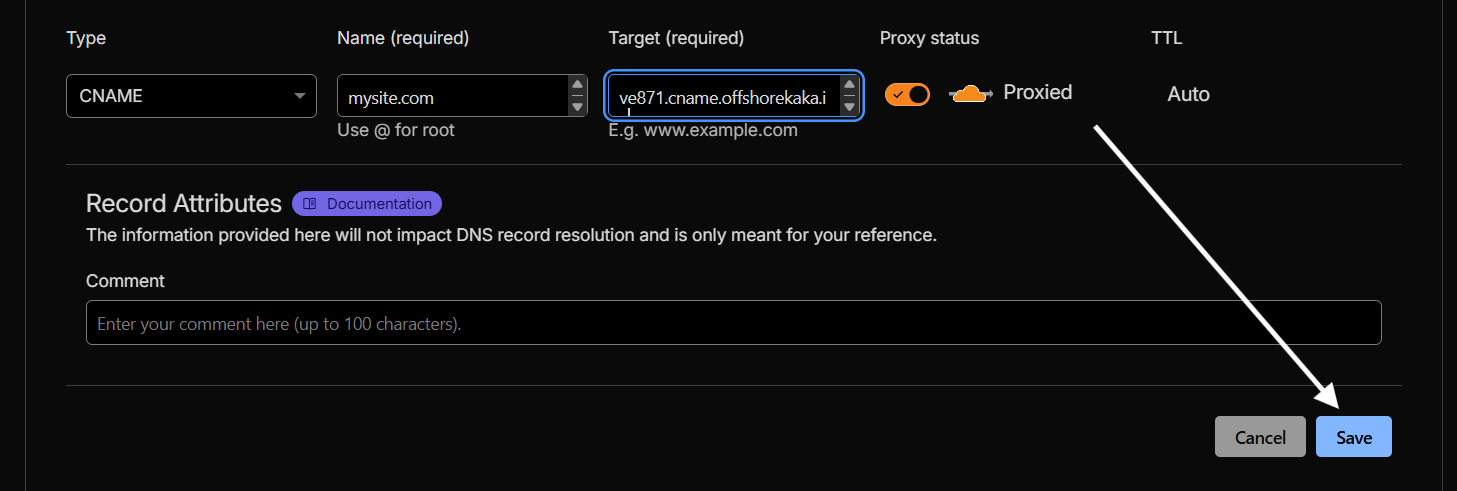
1. Click **Add record**
2. Fill in the details:
Type -> cname
Name -> @ or mysite.com (your domain name)
Target -> ve871.cname.offshorekaka.in
Proxy should be On
TTL -> Auto
3. Click **Save**
(Cloudflare hides your real Server IP and adds DDoS protection. Recommended).
It should be look like this:
Step 4: Add the TXT Record (Connect Domain to CNAME Host)
This is the most important record. It tells your proxy which backend server to use for this domain.
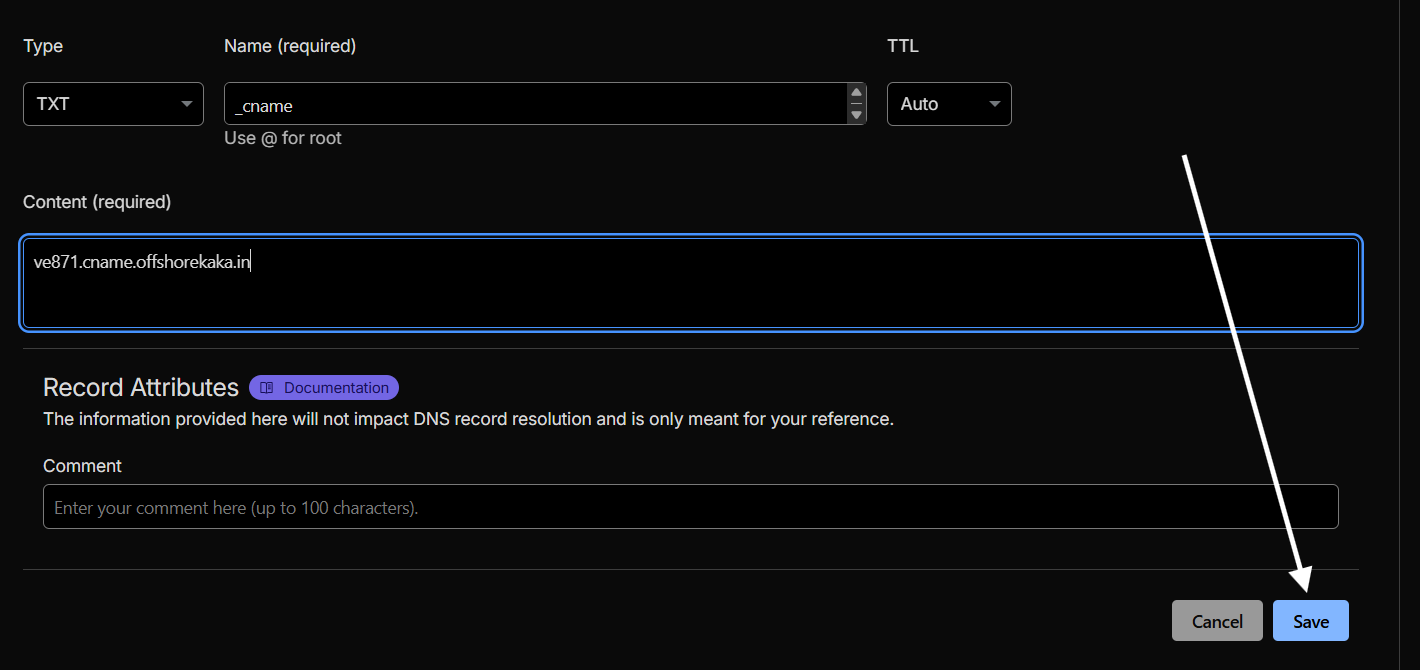
1. Click **Add record** again
2. Fill in the details:
Type -> txt
name -> _cname
Content (required) -> ve871.cname.offshorekaka.in
3. Click **Save**
It should be look like this:
Step 5: Add www or Subdomain (Optional but Recommended)
If you want `www.mysite.com` or `blog.mysite.com` to also work:
Add the below records to make them work:
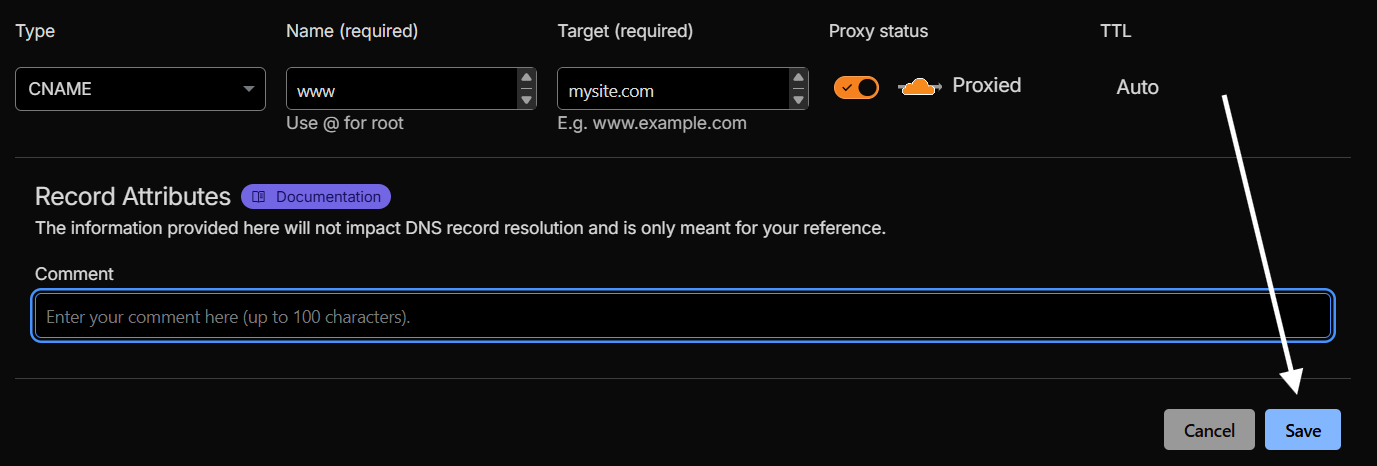
1. Click **Add record**
2. Fill in the details:
Type -> cname
Name -> www or blog
Target -> mysite.com (your domain name)
Proxy should be On
TTL -> Auto
3. Click **Save**
It should be look like this:
Its done!
Wait 1-2 minutes for DNS to propagate
Visit your domain in browser — the proxy will auto-detect the TXT record and route traffic
## Common Problems & Fixes
**Domain not routing, shows “DOMAIN NOT VERIFIED”**
– Check TXT record name — must be exactly `_cname`
– Check TXT record content — must match a CNAME Host ID in your Admin Panel
– Wait 5-10 minutes for DNS propagation and try again
**Getting SSL error / HTTPS not working**
– Make sure Cloudflare SSL is set to **Full** or **Flexible**
– Go to Cloudflare → SSL/TLS → Overview → Select **Full**
Need help? If you encounter any issues, please open a support ticket via the Client Area.